Your first request and approvals
Make a multi-step request, follow Learnya’s plan and stay in control of every action that commits you.
5 min · 5 steps · for everyone
- Step 1
Open the home screen
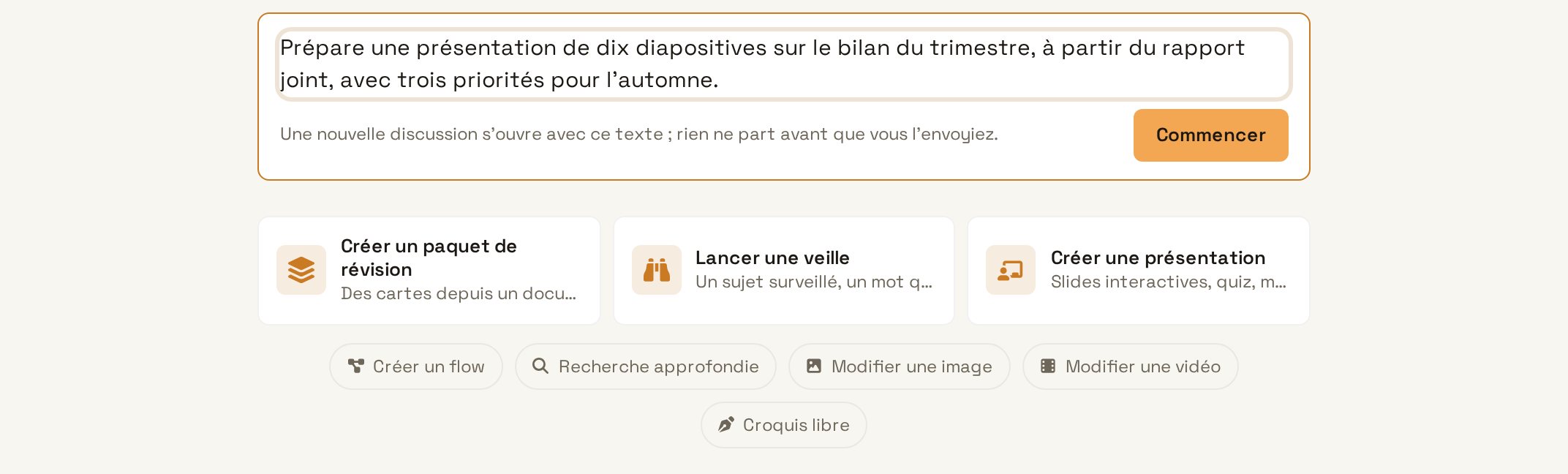
Sign in at app.learnya.ai, or open the desktop app or the phone app. The home screen offers a single input field. Keep Learnya Flash for an everyday request, and choose Learnya Max when the task needs long reasoning.
Open the home screen - Step 2
Describe the result you expect
Write what you want to get, in what form and for whom. A precise request avoids back-and-forth. Press Enter to send.
TypeFind the Federal Council’s three latest press releases on data protection, summarise them on one page with the sources, then prepare an email to my team presenting them. Try in Learnya - Step 3
Follow the plan
Learnya first shows its plan in steps, then each tool it uses: web search, reading pages, writing. Expand a step to see what was read. You can interrupt or refine the request at any time.
- Step 4
Check the sources
Every statement in the summary links to its source. Click a citation to open the original page and check the quoted passage.
- Step 5
Approve sending
Before sending the email, Learnya stops and shows you the full message with its recipients. Edit the text if needed, then click “Approve”. Nothing is sent, bought, published or deleted without your agreement.