Create a deck from a document
Turn a Word or PDF report into a presentation ready to show, then fine-tune it in Deck.
7 min · 6 steps · for everyone
- Step 1
Attach the document
On the home screen, drag your report into the input field, or choose it from the Drive. Learnya reads Word, PDF, PowerPoint and Excel formats.
- Step 2
Ask for the deck
Specify the audience, the number of slides and what needs to stand out. Learnya builds the outline of the presentation before writing the slides.
TypeMake a ten-slide deck from this report for Tuesday’s executive committee. One idea per slide, the key figures in large type, and a final slide with the decisions to be made. Try in Learnya - Step 3
Open the deck
Click the deck card in the thread to open it in Deck. Browse the slides in the left-hand column and correct a title or a figure directly on the slide.
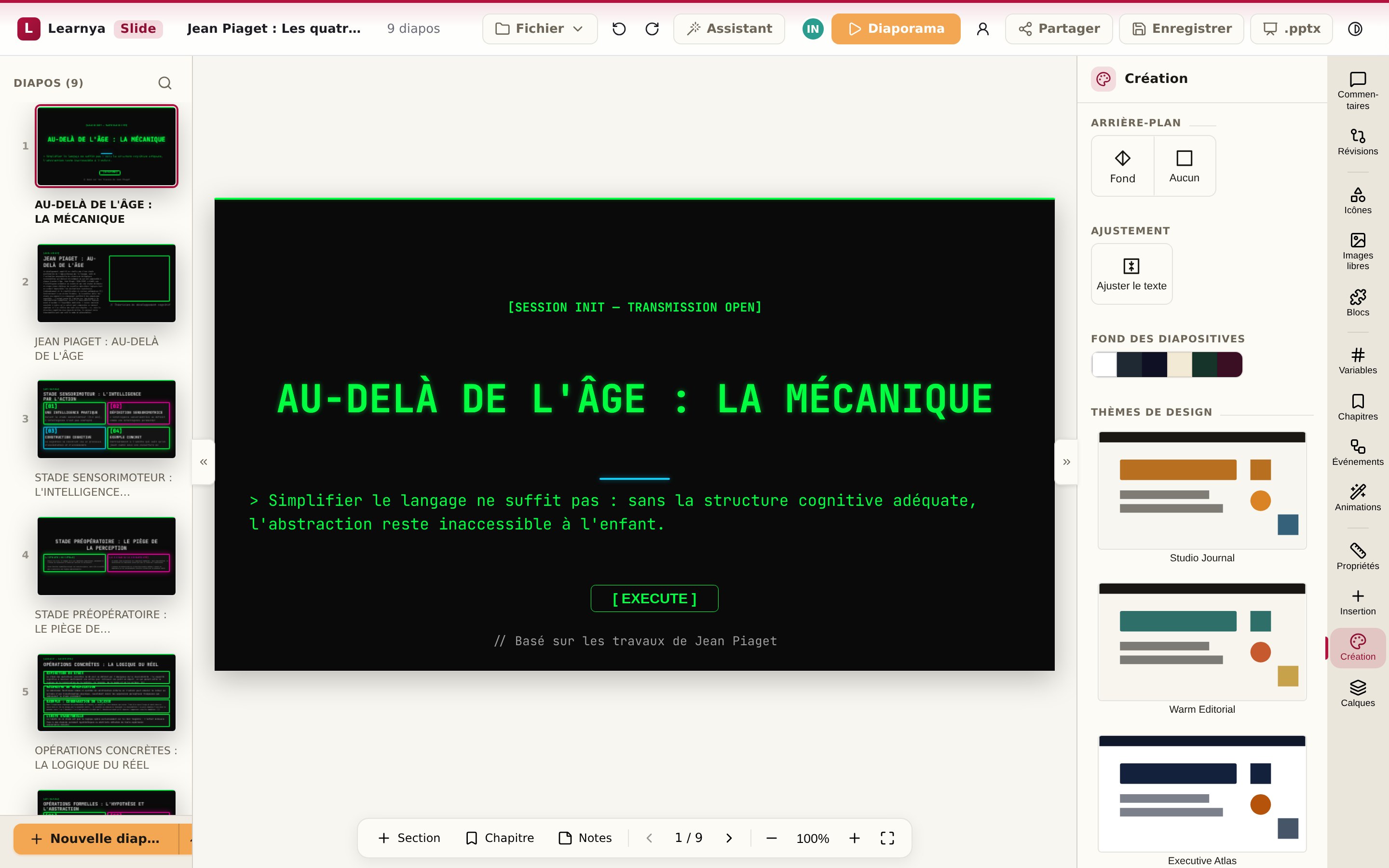
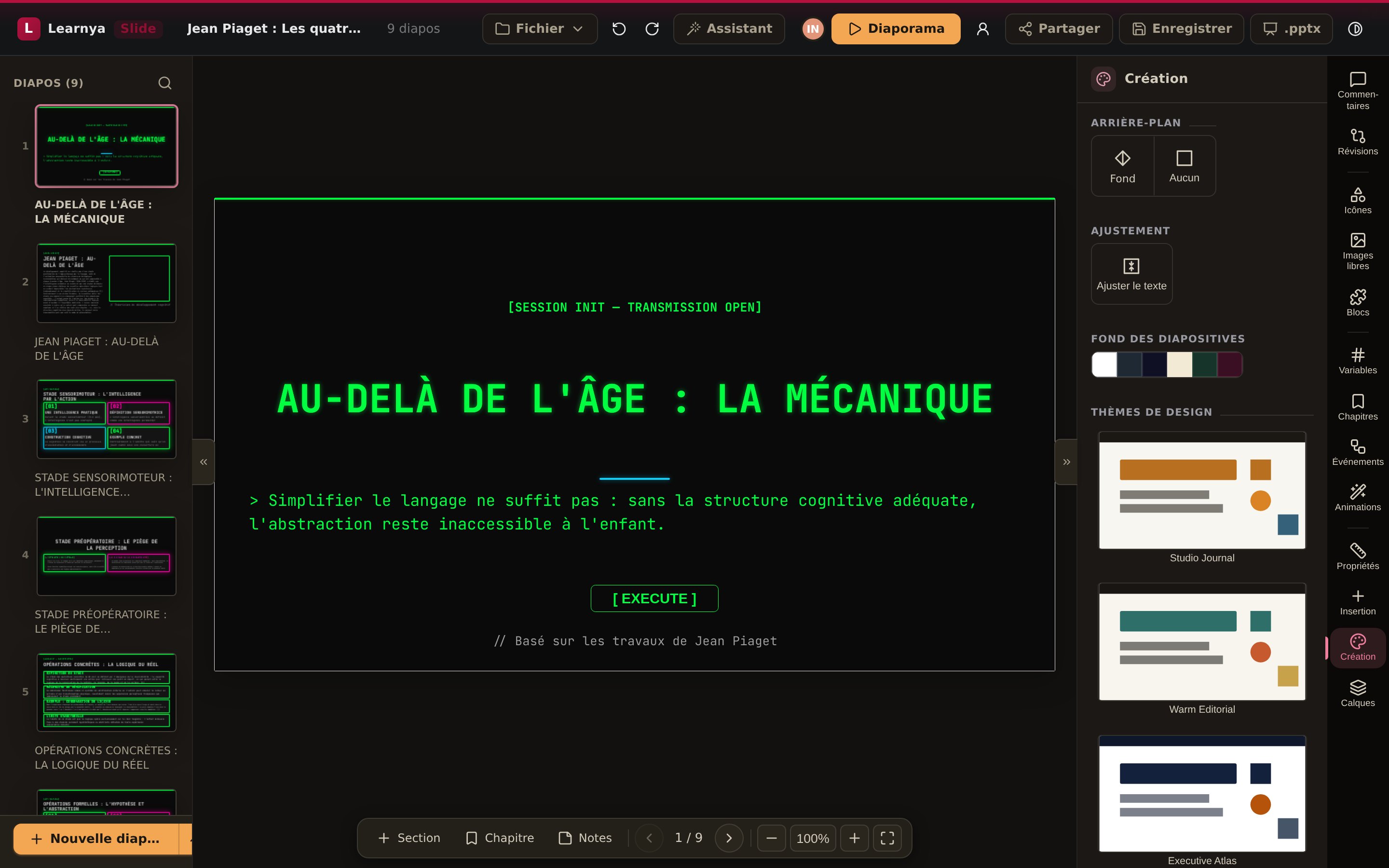
Open the deck - Step 4
Choose the theme and animations
In the Theme panel, select the colours and fonts that suit you. Add an entrance animation to the slides with figures. Keep it understated. One animation per slide is enough.
- Step 5
Review it together
Share the deck with a colleague. You see their presence in real time, they can leave comments on a slide, and the revision history keeps every version.
- Step 6
Present or export
Start the presentation from the Present button, or export to PowerPoint or PDF to send it before the meeting.