Scheduling a task
Create a task that runs on its own, with an instruction that holds up without you.
ObjectiveBy the end of this lesson, you will be able to create a scheduled task whose instruction holds up without you, choose its recurrence and read its status in one sentence.
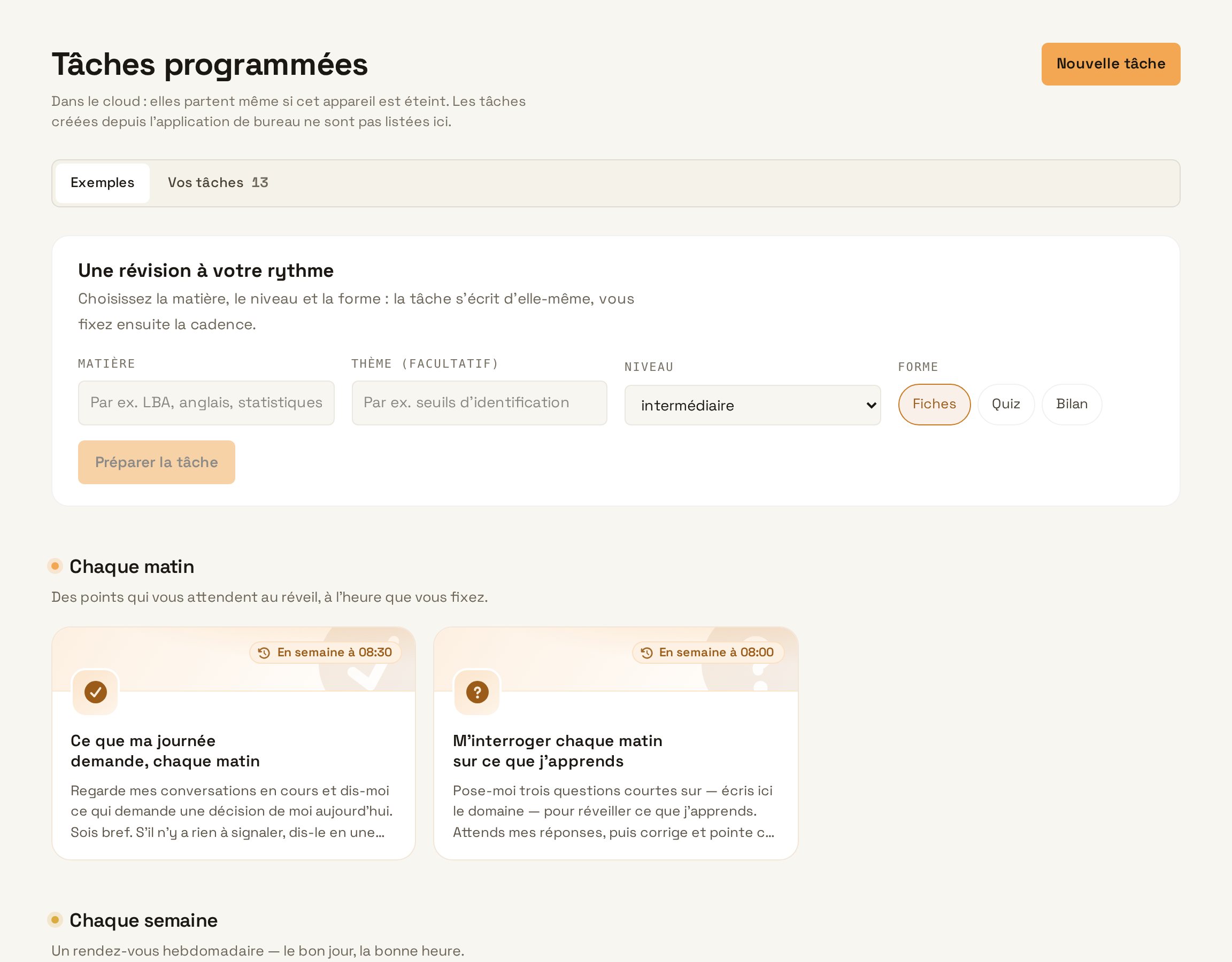
A scheduled task carries out an instruction at the chosen time, without you having to start it. No technical syntax is needed: you choose a recurrence pattern and a time. Five patterns are offered: every day, on weekdays, every week, every month or every hour.
An instruction that holds up without you
The instruction will run when you are not there to clarify it. So it must say everything: what to look at, over which period, in how many lines to answer, and what to do when there is nothing. That last point saves you from receiving a long message every morning saying that nothing happened.
- Click “Automations” in the sidebar.
- Choose “New task”.
- Give it a short name, for example “Monday review”.
- Write “What the agent is told to do”, stating the period, the length and what to do when there is nothing.
- Choose the “Every week” recurrence, Monday as the day and 08:00 as the time.
- Click “Create”, then check the date of the next run.
Reading a task’s status
Each task shows its status in one sentence: when it will run, what it produced last time, or why it did not run. A run that would be too late is skipped rather than started at the wrong time. The history keeps every run, and the “Activity” screen shows what each task produced and its effects.
A task can also prepare a scheduled social media post or a newsletter. Like any action that commits you, the post waits for an approval before it goes out.