Writing your first request
What a good request contains, and how to choose the model that answers it.
ObjectiveBy the end of this lesson, you will be able to write a request with an outcome, context, constraints and what to do when in doubt, then choose between Learnya Flash and Learnya Max.
Learnya is an agentic assistant. It does not just answer, it acts for you. You give it a task in everyday language, it breaks the task into steps, uses the tools it needs and returns a result. Everything therefore starts with a request, and the more precise it is, the fewer corrections you will have to make.
What a good request contains
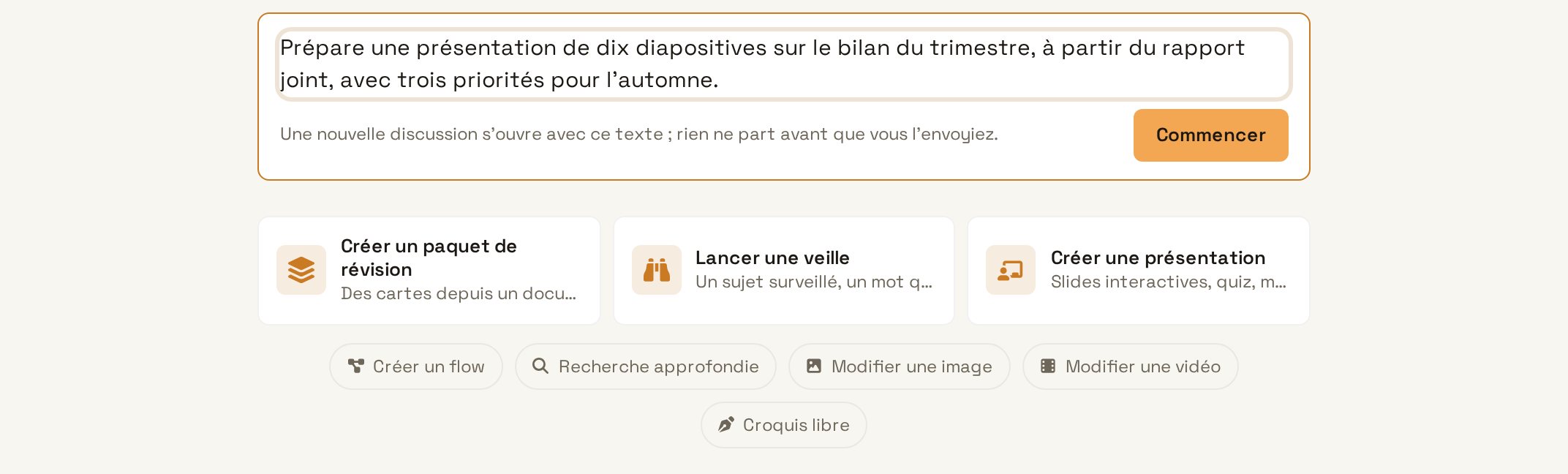
- The expected result: a summary, a table, a presentation, an email ready for review.
- Useful context: for whom, for what purpose, with which documents.
- Constraints: length, tone, language, deadline.
- What to do when in doubt: ask a question rather than guess.
You do not need technical vocabulary. Write as you would to a capable colleague who is new to the matter. If a document serves as the basis, attach it directly to the request.
Choosing the model
Learnya offers two models. Learnya Flash is fast and suits most everyday tasks: rephrasing, summarising, drafting an email. Learnya Max takes the time for long reasoning, useful for analysing a complex file or comparing several sources. Start with Flash and switch to Max when the task calls for thinking. In both cases, your content stays in Switzerland and is never used to train models.
- Open app.learnya.ai and sign in with your account.
- Click “New conversation” in the sidebar.
- Type your request in the input field.
- To attach a file, drag it into the field or choose “Attach from the Drive”.
- Send the request, read the answer and clarify in the same thread if needed.